Getting started
Logging in
In order to make any changes or perform actions on ACCLAiM, the first and most significant step is to access the site and log in. To perform any content management tasks, such as creating content or modifying existing items, or to access secured content, you also must have been granted suitable permissions.
Because ACCLAiM utilises Single Sign On (SSO) you will utilise an existing set of credentials to log in. Due to the nature of this process, in order to share content with colleagues, each individual must log in to ACCLAiM at least once before they can be given access.
Most users will use their existing institutional username and password (or other credentials) to log in via the Australian Access Federation (AAF).
Institutional Authentication
Important
Before proceeding, ensure that your credentials have been provided by an institution or research organisation, rather than being local to ACCLAiM. If you attempt to sign in to an institution’s authentication system using local ACCLAiM credentials, this process will fail.
The login link is located in the top-right hand corner of the page:

You will be presented with the option to utilise AAF authentication to log in.
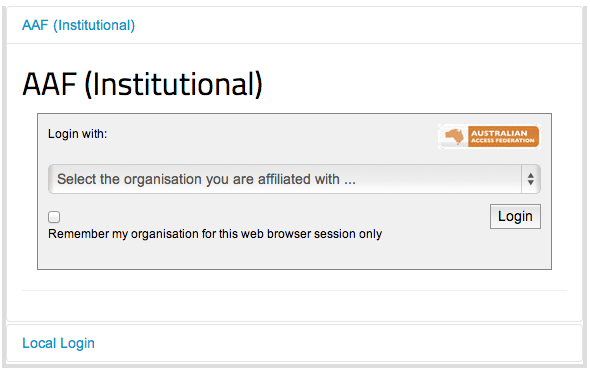
Select your institution or organisation from the dropdown box.
Note
If your institution or organisation doesn’t appear in the list, then you should contact your IT support staff about whether you are part of the Australian Access Federation (AAF). If you are a collaborator associated with an organisation subscribed to the AAF, then you can obtain an AAF Virtual Home account by following the instructions in the AAF Virtual Home User Guide.
Click the Login button.
Enter your institutional or organisational credentials and login.
Note
This is a screen shot of the James Cook University login page - your institution’s page will look different and may behave in a slightly different manner.
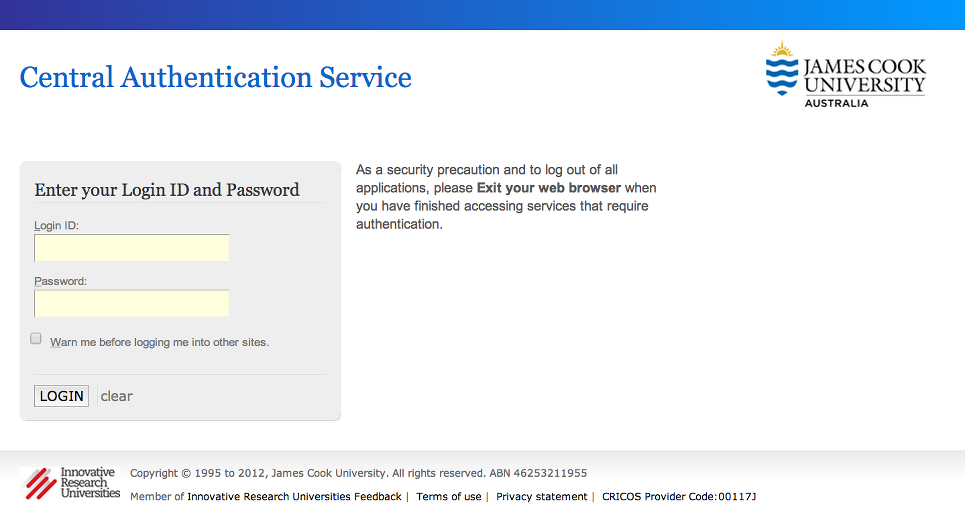
You may be prompted to release certain details about yourself from your organisation, including name, email address, and other particulars. You must accept this to continue so that you can be identified within our system.
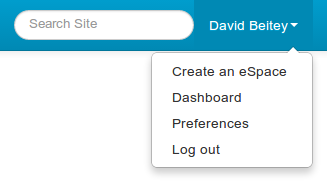
Once logged in, notice that your name is displayed at the top-right hand corner and that you can click on this to display the user actions menu.
Local Authentication
For local authentication, use the instructions that follow.
If you are visiting your site for the first time, the site administrator needs to have provided you with a username and temporary password. Otherwise, ensure that you know your pre-existing credentials.
The login link is located in the top right hand corner of the page.
Click on the Local Login link.
Enter the user name and password that you have for the portal.
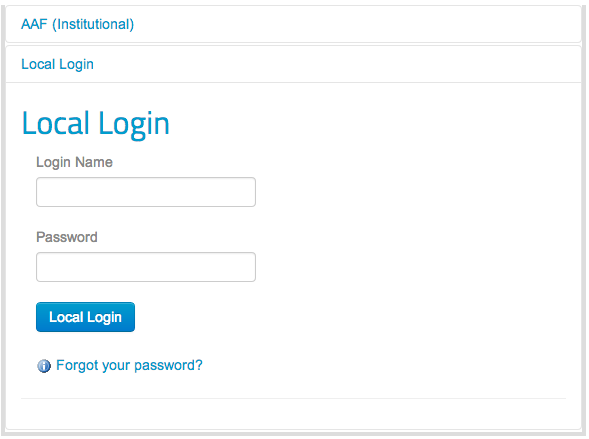
Click on the login button.
If you are unable to login, you can retry your login. If you have forgotten your password, follow the given link to start the reset process.
Logging out
When you’re finished working with ACCLAiM, you should always ensure that you log out.
Click your username in the top-right hand corner of the site to reveal the user actions menu.
Click the Log out link.
Note
If you are logged in via your instutional credentials, you can log out of the portal, but your browser will remember you for use on other Australian Access Federation (AAF) services. To log out entirely, either quit the browser you use are using, or clear all cookies relating to aaf.edu.au and |project-server-host|.
If you cannot log in
Insitutional Authentication
Since authentication is provided by your institution directly, please refer to your local helpdesk for troubleshooting and password reset requests. For details on how to contact your helpdesk, please refer to your insitution’s website.
Local Login
If you are unable to login to the portal, you may have forgotten your password. If you believe this is the case, click onto the Local Login link, and then click on Forgot your password? and follow the steps.
If you still can’t log in, or have forgotten your username, then contact the site administration for assistance.
Permissions and access
Each user can be granted specific role in different areas of the site. Roles can be granted either site-wide (called global roles), which are the managed by site administrators, or granted within a specific area of the site (called local roles), which can be managed by users that already have permissions.
Access can be granted either to a specific user or a group of users. Creation and management of groups of users is managed by site administrators.
Issues or concerns about insufficient access should be directed towards your site administrator or nominated representative.
For more information on granting and controlling access, see Granting access to your content.